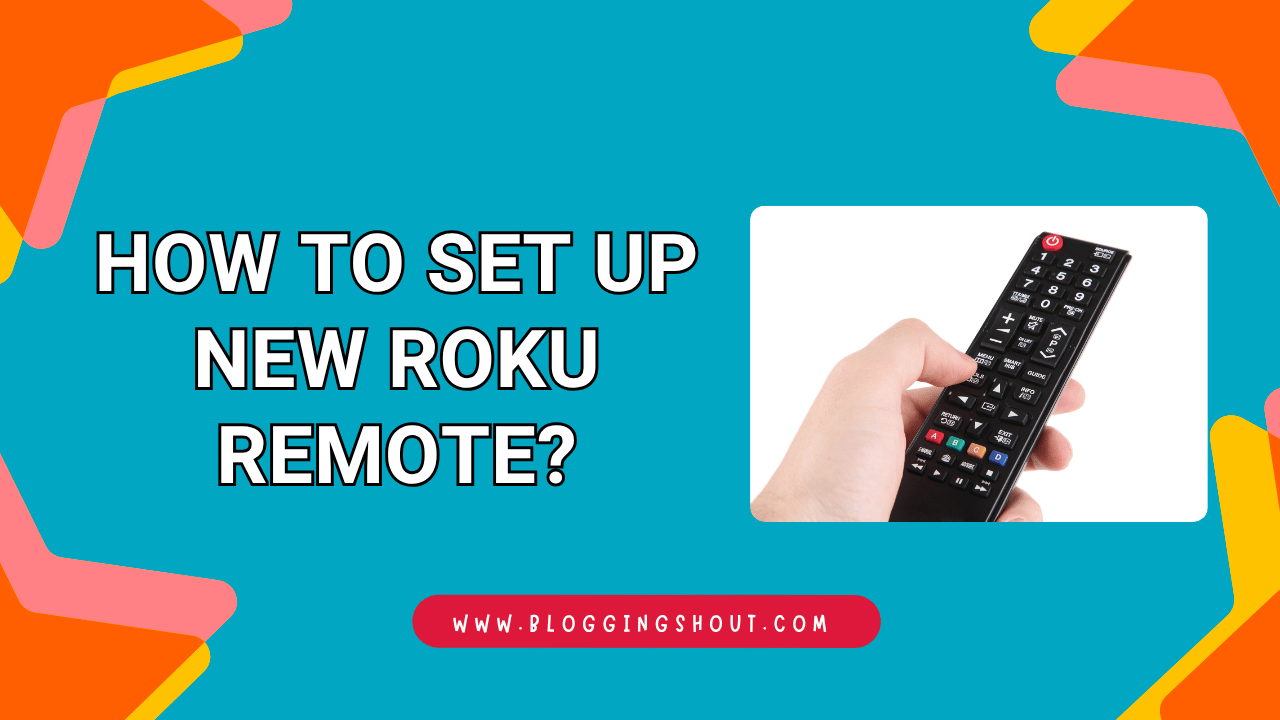
So you just got a brand-new Roku remote. That’s exciting! But now you’re staring at it, wondering where to start. Don’t worry. Setting up a new Roku remote is surprisingly simple. In fact, most people finish the entire process in under five minutes.
Whether you bought a replacement or upgraded to a voice remote, this guide has you covered. I’ll walk you through every single step. By the end, your remote will be paired, connected, and ready to stream your favorite shows.
Let’s jump right in.
What You Need Before Setting Up Your Roku Remote
Before you start, it helps to gather a few things first. This saves time and avoids unnecessary frustration later on.
Check Your Roku Remote Type (Simple vs. Voice Remote)
First, figure out which type of Roku remote you have. Roku sells two main types.
The Simple Remote uses infrared (IR) technology. It requires a clear line of sight to your Roku device. You won’t find a pairing button on this one because it connects automatically.
The Voice Remote uses wireless technology instead. It connects through your Wi-Fi network. You’ll notice a small pairing button inside the battery compartment. This remote also supports voice commands, which is pretty handy.
Knowing your remote type matters because the setup steps differ slightly.
Also Check: How Do I Call a Private Number Back?
Gather Your Essentials
Make sure you have the following items ready:
- Two AA or AAA batteries (check your remote’s battery type)
- A Roku streaming device that is plugged in and powered on
- A stable Wi-Fi connection
- Your TV remote (just in case you need it temporarily)
Once everything is in place, you’re good to go.
How to Set Up New Roku Remote (Step-by-Step Guide)
Now let’s get into the actual setup process. Follow these steps carefully, and your remote will work perfectly.
Step 1 – Insert Batteries Into Your Remote
Slide open the battery cover on the back of your remote. Then, insert the batteries according to the polarity markings. Most Roku remotes use two AA batteries.
After that, close the compartment securely. A loose cover can cause connection issues later.
Step 2 – Turn On Your Roku Device
Next, make sure your Roku device is plugged into your TV and powered on. You should see the Roku home screen on your TV. If you don’t see it, switch your TV to the correct HDMI input.
Also, ensure your Roku device has the latest software update. Outdated firmware sometimes causes pairing problems.
Step 3 – Pair the Remote With Your Roku
Here’s where things depend on your remote type.
For a Simple Remote: Good news. You don’t need to do anything extra. Simply point it at your Roku device and start pressing buttons. It works right away through infrared signals.
For a Voice or Enhanced Remote: Look inside the battery compartment for a small pairing button. Press and hold it for about 3 to 5 seconds. A pairing light will start flashing on the remote. Within a few moments, your Roku device will detect the remote and pair automatically.
I personally recommend holding the remote within three feet of the Roku device during pairing. It speeds things up significantly.
Step 4 – Follow the On-Screen Setup Instructions
Once paired, your TV screen will display setup prompts. Follow each one carefully. Roku will ask you to select your language, display type, and other preferences.
Take your time here. Choosing the right display settings ensures the best picture quality for your specific TV.
Step 5 – Connect to Your Wi-Fi Network
Your Roku device will then prompt you to connect to Wi-Fi. Select your home network from the list and enter your password.
A strong Wi-Fi signal is important for smooth streaming. So, try to keep your Roku device close to your router if possible. Walls and large furniture can weaken the signal.
Step 6 – Test Your Remote Functions
Finally, test all the buttons on your remote. Navigate through the Roku menu, adjust the volume, and try the power button. Everything should respond smoothly.
If something feels off, don’t panic. I’ll cover troubleshooting tips further below.
Also Check: How to Stop Audible Subscription Without Hassle?
How to Set Up a Roku Remote Without a Pairing Button
Some Roku remotes don’t have a pairing button at all. These are usually the basic IR remotes. However, if your remote is lost or broken, you still have options.
Using the Roku App as a Virtual Remote
Download the Roku app from the App Store or Google Play Store. Open the app and connect it to the same Wi-Fi network as your Roku device. Then, tap “Remote” at the bottom of the screen.
Now your phone works just like a real Roku remote. You can navigate menus, type with your keyboard, and even use voice search. Honestly, I sometimes prefer using the app because typing passwords is so much faster.
How to Set Up Roku Voice Remote
If you have a Roku voice remote, the pairing process is similar. However, you get an extra step for voice commands.
Enable Voice Commands on Your Remote
After pairing, press the microphone button on your remote. Your Roku may prompt you to accept voice command permissions. Simply follow the on-screen instructions to enable this feature.
Once enabled, just hold the microphone button and say what you want. For example, try “Find comedy movies” or “Launch Netflix.” The voice feature works really well for quick searches.
Roku Remote Not Working? Common Issues and Fixes
Sometimes things don’t go as planned. Here are the most common problems and their solutions.
Remote Won’t Pair With Roku Device
- Remove the batteries and wait 10 seconds. Then reinsert them.
- Press and hold the pairing button for at least 5 seconds.
- Restart your Roku device by unplugging it for 30 seconds.
- Make sure no other Roku devices nearby are interfering.
Buttons Not Responding
- Replace the batteries with a fresh set.
- Clean the battery contacts with a dry cloth.
- For IR remotes, remove any objects blocking the path to the Roku device.
Remote Keeps Disconnecting
- Move your router closer to the Roku device.
- Check for wireless interference from other devices.
- Update your Roku device to the latest software version.
These simple fixes solve the problem in most cases. If nothing works, contact Roku support directly.
Also Check: How to Delete Stickers iPhone?
Roku Simple Remote vs. Voice Remote – Key Differences
Wondering which remote is right for you? Here’s a quick comparison.
| Feature | Simple Remote | Voice Remote |
| Connection Type | Infrared (IR) | Wi-Fi / Bluetooth |
| Line of Sight Needed | Yes | No |
| Pairing Button | No | Yes |
| Voice Search | No | Yes |
| TV Power/Volume Control | No | Yes |
| Price | Lower | Slightly Higher |
For most beginners, the voice remote offers a better experience overall. It gives you more flexibility and hands-free control.
Tips to Get the Most Out of Your Roku Remote
Now that your remote is set up, here are a few bonus tips to improve your experience.
Customize Shortcut Buttons
Some Roku remotes have programmable shortcut buttons. You can assign them to your favorite streaming apps. For instance, set one button to open Hulu and another for Disney+. It’s a real time-saver.
Use Private Listening With Your Remote
If you have a Roku voice remote with a headphone jack, plug in your earbuds. All audio will route directly to your headphones. This feature is perfect for late-night binge-watching without disturbing anyone.
Frequently Asked Questions (FAQs)
How do I pair a new Roku remote without the old one?
You can use the Roku mobile app as a temporary remote. Connect it to the same Wi-Fi network as your Roku device. Then, use the app to pair your new remote.
Can I use my phone as a Roku remote?
Yes, absolutely. Download the free Roku app on iOS or Android. It works as a full-featured virtual remote.
Why is my new Roku remote not pairing?
Try replacing the batteries first. Then, restart your Roku device. Also, press and hold the pairing button for 5 seconds. Make sure you’re within close range of the Roku device.
Do all Roku remotes work with all Roku devices?
Not always. Simple IR remotes are fairly universal. However, enhanced and voice remotes are compatible only with specific Roku models. Always check compatibility before buying.
How do I reset my Roku remote?
Remove the batteries from the remote. Then, unplug your Roku device for about 10 seconds. Reinsert the batteries and plug the device back in. Press the pairing button to reconnect.
Final Thoughts
Learning how to set up a new Roku remote is easier than most people expect. The whole process takes just a few minutes. Whether you have a simple IR remote or a feature-packed voice remote, the steps are straightforward.
Just remember to check your remote type first. Gather your essentials before starting. And follow the pairing steps carefully. If anything goes wrong, the troubleshooting section above will help you fix it fast.
Now grab that remote, kick back, and enjoy your favorite shows. Happy streaming!