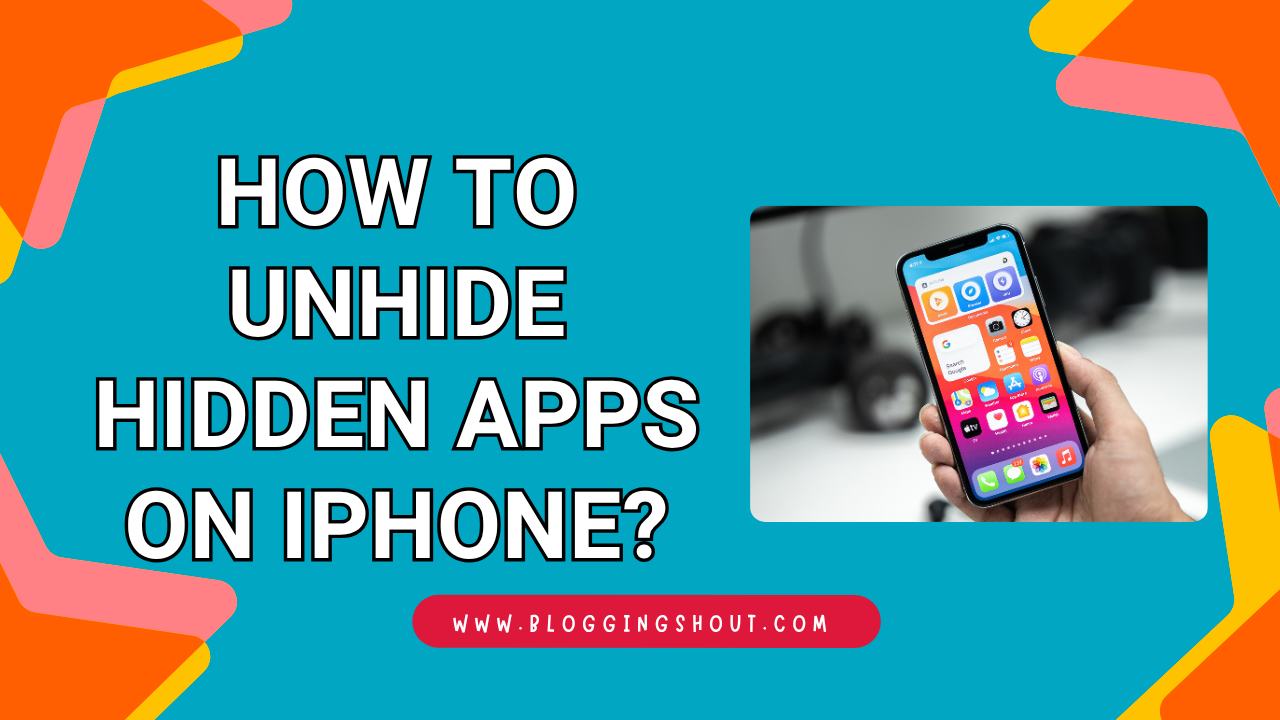
Have you ever looked for an app on your iPhone and couldn’t find it? You’re not alone. Many iPhone users face this problem every day. The good news is that your app is probably not gone. It’s just hidden somewhere on your device.
In this guide, you’ll learn exactly how to unhide hidden apps on iPhone — step by step. Whether you’re a first-time iPhone user or just not very tech-savvy, this guide is for you.
Let’s dive in.
Why Would Apps Be Hidden on Your iPhone?
Before we jump into the fixes, it helps to understand why apps go missing. There are a few common reasons.
You Accidentally Removed It from the Home Screen
This happens more often than you’d think. A long press on the screen can trigger the “jiggle mode.” You might have accidentally tapped “Remove from Home Screen.” The app isn’t deleted — it’s just moved to the App Library.
The App Is Hidden via Screen Time
If Screen Time is turned on, certain apps can be restricted or completely hidden. This is common on family-shared devices or phones set up for kids.
The App Is Tucked Inside the App Library
Apple introduced the App Library in iOS 14. It automatically organizes all your apps into folders. Sometimes, apps sit there without showing on your Home Screen.
Now that you know the “why,” let’s fix it.
Also Check: How to Change AirDrop Name on iPhone?
How to Unhide Hidden Apps on iPhone — 4 Easy Methods
Here are four simple methods. Start with Method 1 and work your way down if needed.
Method 1 — Search Using Spotlight Search
This is the fastest way to find a missing app.
Steps:
- Swipe down from the middle of your Home Screen.
- A search bar will appear at the top.
- Type the name of the app you’re looking for.
- The app should appear in the search results.
- Tap it to open it directly.
Pro Tip: If the app appears in search but not on your Home Screen, it’s likely hidden in the App Library. Keep reading to fix that.
Method 2 — Find the App in App Library
The App Library stores every app installed on your iPhone. Here’s how to access it.
Steps:
- Swipe left on your Home Screen until you reach the last page.
- You’ll see the App Library with categorized folders.
- Tap the search bar at the top of the App Library.
- Type the app name.
- Once you find it, press and hold the app icon.
- Tap “Add to Home Screen.”
That’s it! Your app will now reappear on your Home Screen.
Method 3 — Unhide Apps Hidden via Screen Time
This method works if your app was restricted through Screen Time settings.
Steps:
- Open the Settings app on your iPhone.
- Scroll down and tap Screen Time.
- Tap Content & Privacy Restrictions.
- Enter your Screen Time passcode if prompted.
- Tap Allowed Apps.
- Find the app that’s hidden and toggle it ON.
After this, the app should reappear on your Home Screen automatically.
Personal Tip: If you don’t remember your Screen Time passcode, you may need to reset it through your Apple ID. It’s a bit of a process, but totally doable.
Method 4 — Re-add the App to Your Home Screen
Sometimes, the app is in the App Library but not on your main screen. Here’s a quick way to bring it back.
Steps:
- Swipe left to open the App Library.
- Find the app you want to restore.
- Press and hold the app icon until a menu appears.
- Select “Add to Home Screen.”
- Go back to your Home Screen — the app will be there.
This is especially useful after a phone reset or iOS update.
Also Check: How to Unpair My Apple Watch Safely?
How to Prevent Apps from Getting Hidden Again
Once your apps are back, you’ll want to keep them visible. Here are a few simple tips.
- Lock your Home Screen layout. Go to Settings → Screen Time → Content & Privacy Restrictions and disable changes to Home Screen layout.
- Avoid accidental long presses. Be careful in “jiggle mode” — only remove apps when you mean to.
- Organize your apps into folders. This way, you always know where everything is.
- Turn off automatic App Library hiding. Go to Settings → Home Screen and choose to add new apps to your Home Screen automatically.
These small steps can save you a lot of confusion later.
Hidden Apps vs. Deleted Apps — What’s the Difference?
Many users confuse these two. They’re very different, so let’s clear it up.
| Feature | Hidden App | Deleted App |
| Still installed? | ✅ Yes | ❌ No |
| App data saved? | ✅ Yes | ❌ No (usually) |
| Visible on Home Screen? | ❌ No | ❌ No |
| Found in App Library? | ✅ Yes | ❌ No |
| Needs to be re-downloaded? | ❌ No | ✅ Yes |
So, if you can find the app in the App Library or Spotlight Search, it’s hidden — not deleted. That’s great news! You don’t have to re-download anything.
Frequently Asked Questions (FAQs)
Can someone hide apps on my iPhone without me knowing?
Yes, it’s possible — especially if they have access to Screen Time settings. If apps keep disappearing, check your Screen Time restrictions under Settings.
Why can’t I find an app even after unhiding it?
First, restart your iPhone and check again. Also, make sure the app isn’t restricted under Screen Time. If it’s still missing, try re-downloading it from the App Store.
Does hiding an app delete its data?
No, it doesn’t. Hiding an app only removes it from your Home Screen. All your data, logins, and settings stay intact.
How do I know if an app is restricted by Screen Time?
Go to Settings → Screen Time → Content & Privacy Restrictions → Allowed Apps. If the app’s toggle is off, it’s been restricted.
Can I unhide apps on older iPhone models?
Yes! All these methods work on iPhones running iOS 14 and later. If you have an older iOS version, the App Library won’t be available — but Spotlight Search and Screen Time methods will still work.
Conclusion
Losing track of an app on your iPhone can feel frustrating. But as you’ve seen, it’s almost always an easy fix. Whether your app is hiding in the App Library, buried under Screen Time restrictions, or simply removed from the Home Screen — you now know exactly what to do.
To recap, the four methods to how to unhide hidden apps on iPhone are:
- Use Spotlight Search
- Check the App Library
- Adjust Screen Time settings
- Re-add the app to your Home Screen
Try them one by one and your app will be back in no time. If this guide helped you, share it with a friend who might need it too!