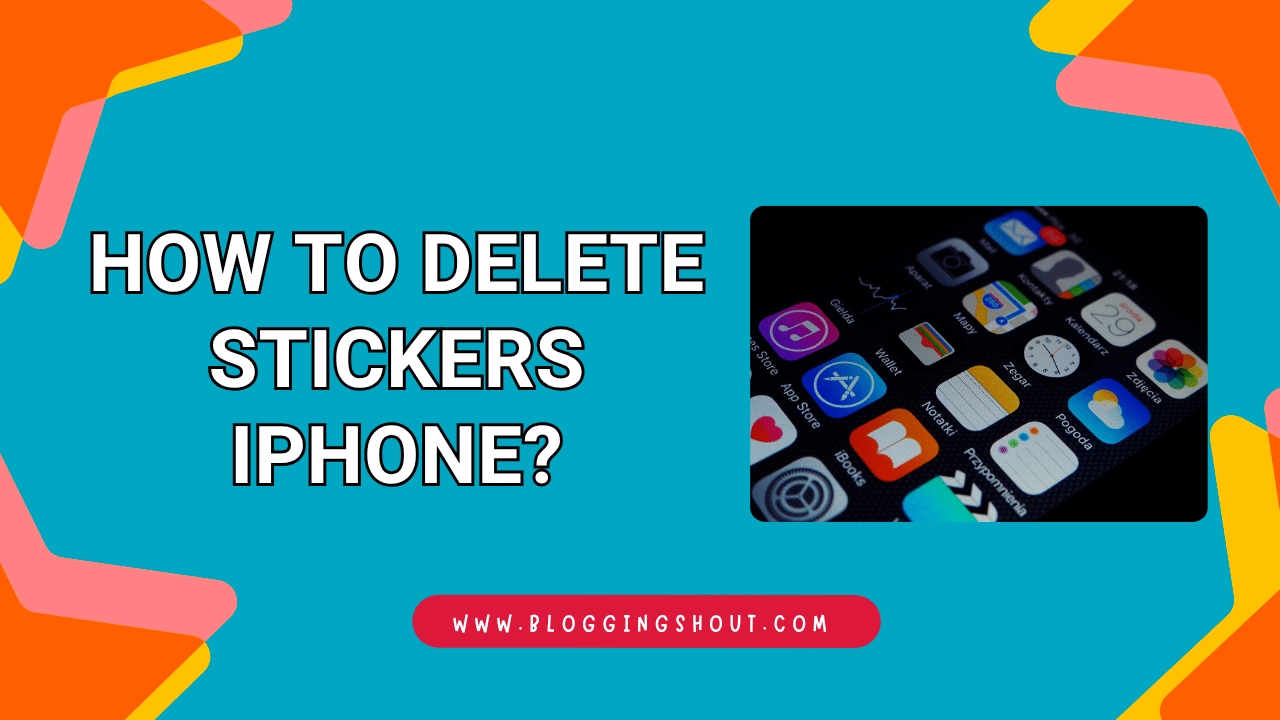
Stickers on your iPhone are fun at first. But over time, they start piling up fast. Before you know it, your iMessage drawer is full of sticker packs you never use.
If that sounds familiar, you are not alone. Millions of iPhone users deal with this exact clutter. The good news is that cleaning it up only takes a few taps.
In this guide, you will learn how to delete stickers iPhone users no longer need. We will walk through five simple methods, step by step. Whether you downloaded a sticker pack or created custom stickers, we have you covered.
Let’s jump right in.
Why You Might Want to Delete Stickers on iPhone
Before we get to the methods, let’s talk about why this matters.
First, unused sticker packs clutter your iMessage app drawer. As a result, finding the stickers you actually use becomes harder. Scrolling through dozens of packs just to find one emoji gets old quickly.
Additionally, some sticker apps take up storage space on your phone. While most packs are small, they do add up over time. Removing them frees up room for things that matter more.
Finally, a clean messaging setup just feels better. It keeps your experience smooth and distraction-free. Think of it like organizing a junk drawer in your kitchen.
Also Check: How to Delete Multiple Photos on iPhone?
How to Delete Stickers iPhone?
Method 1: Delete Stickers Directly From the iMessage App Drawer
This is the fastest way to remove stickers on your iPhone. You can do it without ever leaving the Messages app.
Step-by-Step Instructions
- Open the Messages app on your iPhone.
- Tap the plus (+) icon next to the text field.
- Tap Stickers from the menu.
- Swipe left on the sticker pack row at the top to find the pack you want to remove.
- Long-press the sticker pack icon.
- Tap Delete when the option appears.
That’s it. The sticker pack will disappear from your drawer right away. However, keep in mind that this method works best for third-party sticker packs. Built-in stickers may not show a delete option here.
Method 2: Remove Sticker Apps Through the App Store
Sometimes, sticker packs are tied to apps you downloaded from the App Store. In that case, removing the app also removes its stickers.
Step-by-Step Instructions
- Open the App Store on your iPhone.
- Tap your profile icon in the top-right corner.
- Scroll down to find the sticker app you want to remove.
- Swipe left on the app name.
- Tap the Delete button.
As a result, the sticker pack will be removed from both the App Store and your Messages app. This method is helpful when you can’t find the sticker pack inside iMessage directly.
Also Check: How to Unhide Hidden Apps on iPhone?
Method 3: Delete Stickers From iPhone Home Screen
Many sticker packs show up as standalone apps on your Home Screen. Because of that, you can remove them just like any other app.
Step-by-Step Instructions
- Go to your Home Screen.
- Find the sticker app you want to delete.
- Long-press the app icon until a menu appears.
- Tap Remove App.
- Then tap Delete App to confirm.
This approach works well if you prefer a visual way to manage things. Moreover, it also frees up storage since you are deleting the full app. I personally use this method the most because it feels quick and familiar.
Method 4: Manage Stickers Through iPhone Settings
If you are not sure which sticker apps are taking up space, this method helps. You can use the Settings app to see exactly how much storage each one uses.
Step-by-Step Instructions
- Open Settings on your iPhone.
- Tap General.
- Tap iPhone Storage.
- Wait for the list to load, then scroll through it.
- Find the sticker app you want to remove.
- Tap on it and select Delete App.
In addition to deleting the app, this screen shows you its exact size. So, you can prioritize which ones to remove first. This is especially useful for beginners who want to free up space without guessing.
Method 5: Delete Custom Stickers You Created (iOS 17 and Later)
Starting with iOS 17, Apple lets you create custom Live Stickers from your photos. These stickers are fun to make, but they can build up fast too.
Fortunately, removing them is just as easy.
Step-by-Step Instructions
- Open the Messages app.
- Tap the plus (+) icon, then tap Stickers.
- Go to the custom stickers section (look for your created stickers).
- Long-press the sticker you want to remove.
- Tap Delete from the pop-up menu.
You can repeat this for as many custom stickers as you need. Since these stickers live in iMessage, they do not take up noticeable storage. Still, removing unused ones keeps your collection tidy.
Also Check: How to Change AirDrop Name on iPhone?
How to Delete Stickers iPhone vs. Hiding Them: What Is the Difference?
You might wonder if hiding stickers is the same as deleting them. Actually, these are two different things.
| Action | What It Does | Recoverable? |
| Deleting | Fully removes the sticker pack from your device | Yes, re-download from App Store |
| Hiding | Removes the pack from the iMessage drawer but keeps it installed | Yes, unhide anytime |
So, if you think you might want a sticker pack later, hiding it is a safer choice. On the other hand, deleting is better when you want a clean break and some extra storage back.
For most people, deleting works just fine. You can always re-download free sticker packs from the App Store if you change your mind.
Tips to Keep Your iPhone Stickers Organized
Now that you know how to delete stickers iPhone offers, here are a few tips to stay organized going forward.
- Review your stickers monthly. Take a minute each month to remove packs you no longer use. This small habit prevents clutter from building up again.
- Avoid downloading every free sticker pack. It is tempting, but most free packs end up unused. Only grab the ones you know you will actually send.
- Use folders for sticker apps. If you keep sticker apps on your Home Screen, group them in a folder. That way, they will not spread across multiple pages.
These simple steps save you time in the long run. Plus, your messaging experience stays smooth and enjoyable.
Frequently Asked Questions (FAQs)
Can I Get Deleted Stickers Back on My iPhone?
Yes, in most cases you can. If the sticker pack came from the App Store, simply search for it and download it again. Custom stickers, however, will need to be recreated from your photos.
Why Can’t I Delete Some Stickers on My iPhone?
Some sticker options are built into iOS itself. Apple includes certain emoji and Memoji stickers by default. You cannot fully delete these, but you can sometimes hide them from the iMessage drawer.
Does Deleting Stickers Free Up Storage Space?
It depends on the sticker pack. Standalone sticker apps do take up some storage. Deleting them gives you that space back. Custom stickers and built-in options use very little storage, so the impact is minimal.
How Do I Delete Stickers on Older iPhone Models?
The steps are mostly the same on older models running iOS 16 or earlier. The main difference is that custom Live Stickers are only available on iOS 17 and later. For other methods, the process works across most iPhone versions.
Wrapping Up
Learning how to delete stickers iPhone stores in your Messages app is simpler than most people think. Whether you use the iMessage drawer, the App Store, or the Settings app, each method takes under a minute.
Start by clearing out the packs you never use. Then, make it a habit to check your stickers once in a while. A little cleanup goes a long way toward a faster and cleaner messaging experience.
Now go ahead and give your sticker drawer the refresh it deserves.